Stop Taking Screenshots: Convert PDF Pages to Images Online
Convert PDF pages to PNG or JPG with DocCrunch. Export every page as images locally in your browser, with no server upload.
Screenshots are the slow way to turn PDF pages into images.
Screenshots work for one page, but they are easy to crop poorly and the quality changes from page to page. For a long document, screenshots become busywork.
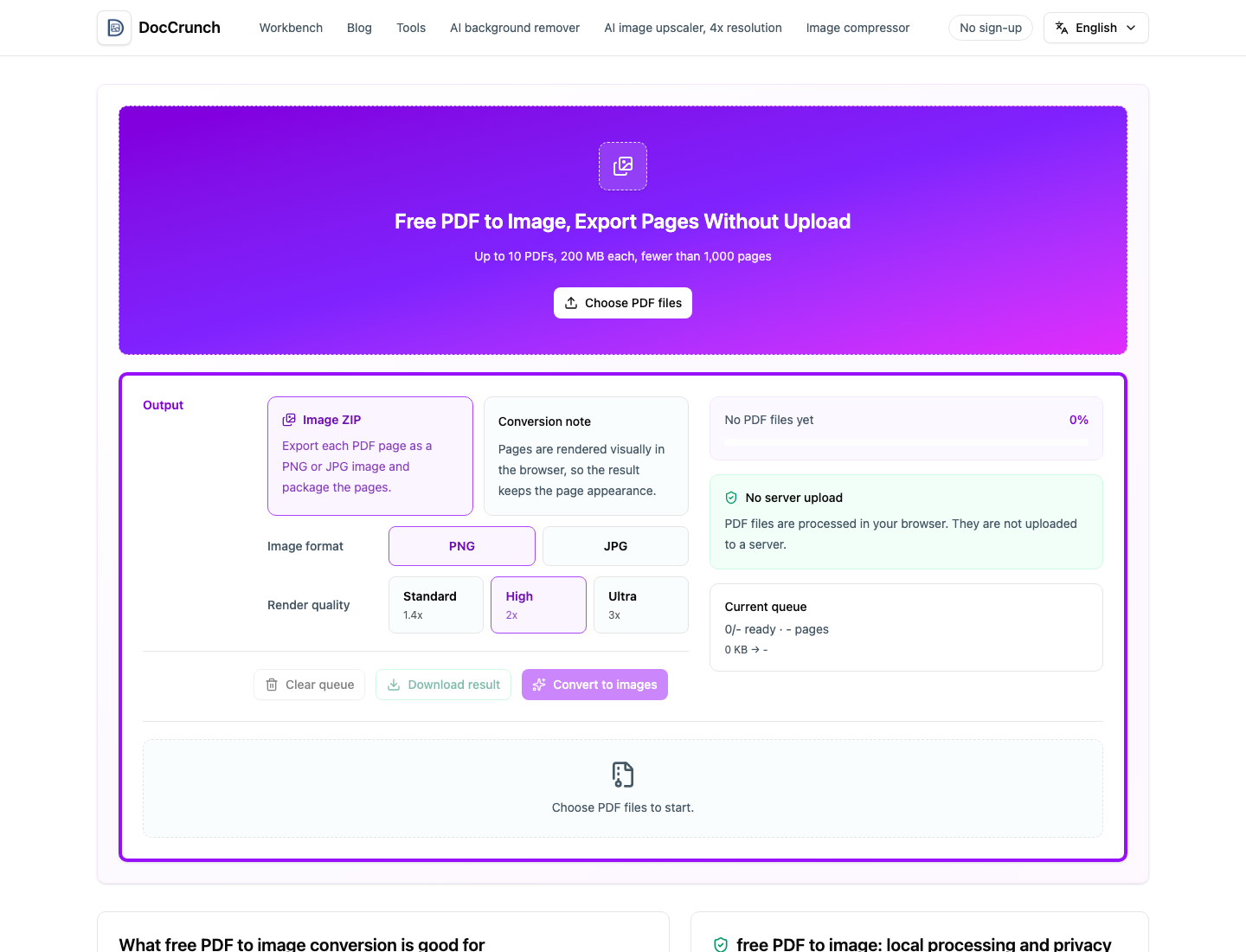
Use DocCrunch PDF to Image. Drop in a PDF, choose PNG or JPG, pick a render quality and export every page as images in one download.
When PDF to image helps
- Share pages in chat apps where images are easier to preview.
- Insert report or lecture pages into slides.
- Archive important PDF pages as image files.
- Turn contracts, receipts or manuals into quick previews.
If the PDF contains pages you do not need, remove them first with Remove PDF Pages. If the PDF is too large, run PDF Compress before converting.
Local conversion is better for sensitive documents
PDFs often contain contracts, prices, IDs or internal notes. DocCrunch converts PDF pages in your browser, so the file does not need to upload to a server.
Convert pages here: PDF to Image.
Recommended DocCrunch tools
These tools run locally in the browser whenever possible, so files do not need to be uploaded to a server.
FAQ
Can I convert PDF pages to JPG or PNG?
Yes. DocCrunch exports PDF pages as PNG or JPG images and downloads them as a ZIP.
Will the page appearance be preserved?
Yes. Pages are rendered visually in the browser, so the image output matches the PDF page appearance.
Can I convert only selected pages?
Use Remove PDF Pages first to delete pages you do not need, then convert the cleaned PDF.
Are PDF files uploaded to a server?
No. Conversion runs locally in your browser.
Convert PDF to images
Upload a PDF, choose PNG or JPG and export each page as an image.
PDF to Image