Editing an image should not secretly convert it
Resize, crop, rotate and edit images online with DocCrunch while keeping the original JPG, PNG or WebP format by default. Choose another output format only when you need conversion.
I used to check every downloaded file after using an online editor. Did my transparent PNG turn into JPG? Did a WebP asset come back as a heavier PNG? Did a simple rotation change the format for no reason?
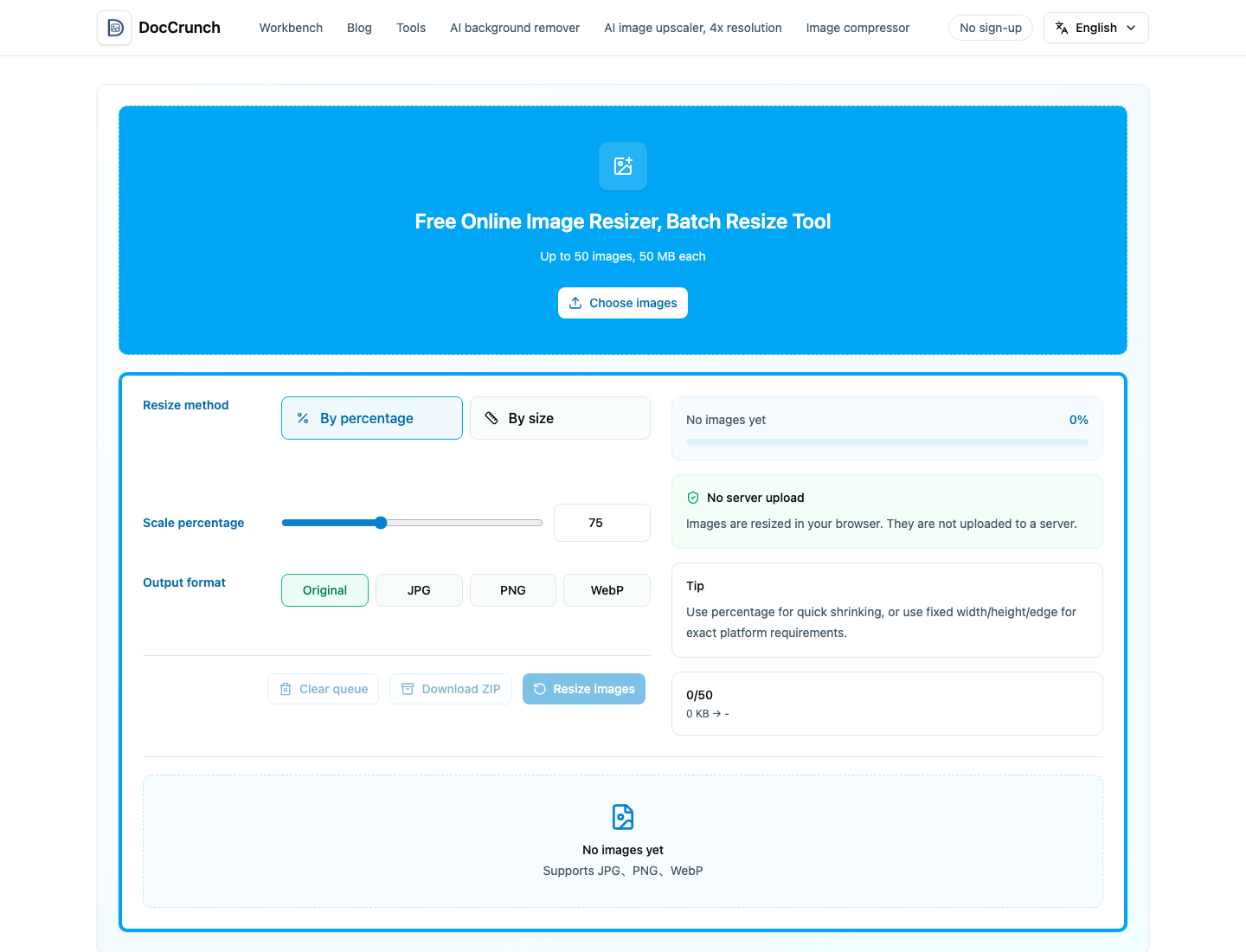
DocCrunch now keeps that default simple across the image workflow. If you resize, crop, rotate, split, upscale or do a quick edit, the default output is Original. A JPG remains JPG, a PNG remains PNG and a WebP remains WebP unless you choose another format yourself.
A practical workflow
- Choose the job first: resize, crop, rotate or split.
- Open Image Resize, Image Crop or Image Rotate.
- Upload your files.
- Leave Output format as Original.
- Process and download the result or ZIP.
That tiny “Original” default saves a lot of checking. You do not need to wonder whether transparency survived or whether a web asset changed into a larger file.
When conversion is still useful
Choose PNG when you need transparency. Choose JPG for photos and compatibility. Choose WebP for web pages when the platform supports it. The point is control: conversion should happen because you asked for it.
Local processing matters too
Many quick edits involve personal photos, private screenshots, product drafts or client materials. DocCrunch handles the core image work in your browser, which keeps the workflow quieter and safer.
Small defaults matter. “Original” is one of those defaults that makes the whole tool feel less annoying.
Recommended DocCrunch tools
These tools run locally in the browser whenever possible, so files do not need to be uploaded to a server.
FAQ
Which tools keep the original format by default?
Image Resize, Image Crop, Image Rotate, Image Divide, Image Upscale and the online image editor try to keep the original JPG, PNG or WebP format by default.
When should I choose JPG, PNG or WebP manually?
Choose manually when you really want conversion, such as PNG for transparency, JPG for photos or WebP for web assets.
Can I process many files at once?
Yes. Batch-friendly image tools can process multiple files and provide batch download where appropriate.
Do these tools upload my images?
Core image editing work runs locally in the browser.
Edit images without format surprises
Keep Output format set to Original, process your images and download the results.
Open Image Resize